FAQs
Find answers to common questions about the Bravo Throttle Quadrant, including compatibility, features, setup, and usage.
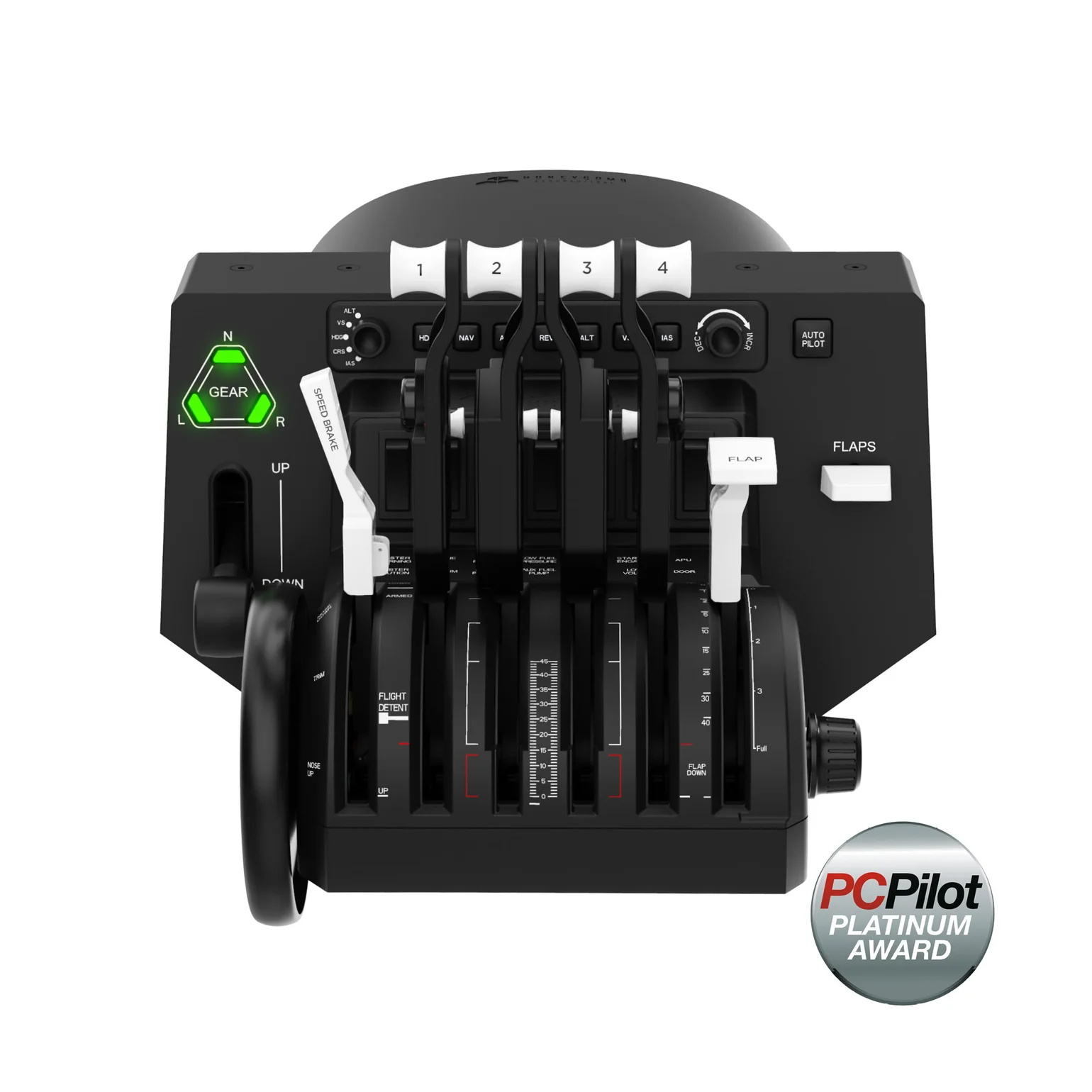
What is the Bravo Throttle Quadrant?
The Bravo Throttle Quadrant is an all-in-one flight simulation throttle system designed for both general aviation and commercial aircraft simulation.
It includes configurable throttle levers, autopilot controls, annunciator lights, trim wheel functionality, and landing gear controls in a single desktop-mounted unit.
Who is the Bravo Throttle Quadrant designed for?
The Bravo Throttle Quadrant is ideal for:
- Flight simulation enthusiasts looking for realistic throttle controls
- General aviation and commercial airline sim pilots
- Users building a more complete cockpit setup
- Beginners upgrading from keyboard or gamepad controls
- Experienced simmers wanting configurable aircraft profiles
What simulators is the Bravo Throttle Quadrant compatible with?
The Bravo Throttle Quadrant supports major flight simulation platforms, including:
- Microsoft Flight Simulator
- X-Plane 11 and 12
- Prepar3D
Compatibility is only guaranteed for supported flight simulators. Other titles may not work as expected.
Does the Bravo Throttle Quadrant work on Xbox?
The Bravo Throttle Quadrant supports Xbox only when connected through the Alpha Flight Controls XPC and Honeycomb Xbox Hub.
The Honeycomb Xbox Hub is required to use the Bravo Throttle Quadrant on Xbox Series X|S with supported Honeycomb hardware.
Learn more here:
https://flyhoneycomb.com/collections/xbox-compatibility
What controls are included on the Bravo Throttle Quadrant?
The Bravo Throttle Quadrant includes:
- Configurable throttle levers
- General aviation and commercial lever sets
- Flap lever
- Spoiler lever
- Functional thrust reversers
- Integrated autopilot panel
- Annunciator panel with warning lights
- Landing gear lever with indicator lights
- Trim wheel
- Programmable switches and buttons
What makes the Bravo Throttle Quadrant unique?
The Bravo Throttle Quadrant combines multiple cockpit systems into a single compact throttle solution.
Key differentiators include:
- Configurable GA and airliner lever setups
- Integrated autopilot controls
- Functional annunciator panel
- Trim wheel and landing gear controls
- Adjustable throttle resistance
- Support for multiple aircraft configurations
Can I customize the Bravo Throttle Quadrant?
Yes. Users can:
- Reassign buttons and switches
- Configure lever layouts
- Adjust throttle resistance
- Create aircraft-specific simulator profiles
- Configure flap and spoiler axes
What comes in the box?
The Bravo Throttle Quadrant package typically includes:
- Bravo Throttle Quadrant
- General aviation lever set
- Commercial lever set
- Dual mounting solution
- USB cable
- Quick start guide
Can I use the Bravo Throttle Quadrant without the Alpha Flight Controls?
Yes. The Bravo Throttle Quadrant can operate independently on supported PC and Mac simulators.
However, many users combine it with the Alpha Flight Controls for a more complete cockpit setup.
Is the Bravo Throttle Quadrant suitable for beginners?
Yes. The Bravo Throttle Quadrant is suitable for beginners while still offering advanced functionality for experienced sim pilots.
Its configurable lever system allows users to start simple and expand into more advanced aircraft configurations over time.
Will there be updates or profiles available?
Yes. Honeycomb provides software resources, profiles, and support materials for supported simulators.
Where should I start if I am setting up the Bravo Throttle Quadrant for the first time?
Start by:
- Connecting the Bravo Throttle Quadrant directly to your computer
- Confirming the device is recognized by your operating system
- Launching your simulator
- Verifying throttle and axis assignments
- Configuring lever layouts for your aircraft
- Adjusting sensitivity and dead zones as needed
For best results, connect the Bravo Throttle Quadrant before launching your simulator.